Today, it has become very easy to give a new look to a normal photo by changing its background with AI photo editing. You can keep the person in the photo the same and change only the place around them. A background filled with flowers, a colorful door, a riverside view, a green garden, or an open sky can make the photo look completely different. Trending Background Change Photo Editing Prompt is a simple way to create this type of creative photo editing.
With the right Prompt, you can change the background and also match the light, colors, and overall environment with the photo. The best part is that you do not need advanced editing knowledge for this. You can upload your photo and clearly describe the type of background you want, and AI can create it according to your instructions. With a well-written Prompt, even a simple photo can become a beautiful and natural-looking image.
Trending Background Change Photo Editing Prompt
Instagram AI Background Change Prompt is mainly a Prompt idea that can be used to create a new background for your photo. Here, you can keep the main person the same and change only the environment around them. For example, you can add a flower-covered wall, a beautiful house door, a riverside location, a garden, or another colourful place behind the person.
When doing realistic photo background editing, it is not enough to add only a beautiful background. The light, shadow, colors, and position of the person should also match the new place. Daylight can be used for a daytime photo, while soft light can be used for an evening scene to make the result look more natural.
A good Prompt helps AI understand which parts should be changed and which parts should remain the same. So, along with describing the new background, it is also useful to clearly mention that the person’s face, hair, clothes, and natural appearance should remain unchanged. This can help create a more realistic result.
Give Your Photo A Fresh Background Look
- First, open the Gemini website. After opening the website, select the Create with Gemini option. Then upload the photo that you want to edit.
- After the photo is uploaded, you will see a text box below. Paste or type your preferred Prompt there. You can describe the type of background you want, the flower colors, the location, the lighting, the sky, and the overall mood of the image.
- After writing everything clearly, click the Generate button. Wait for a few moments, and Gemini will create the edited image according to your instructions.
- If the first result does not look exactly the way you want, you can change some parts of the Prompt and generate the image again. While creating a realistic background replacement, adding instructions for natural lighting and keeping the original person unchanged can help make the final photo look more realistic.
Find The Right Background Editing Idea
- Open Google on your mobile and search for Ai editz. After searching, open the website that appears in the results.
- Once you enter the website, look for the post you need. If you cannot find it directly, use the search button at the top. Search for Trending Background Change Photo Editing Prompt to find the related post.
- After opening the post, scroll down to find the required editing material and Prompt. You can choose the one that matches your needs and use it for your own photo.
- Try not to use the same background style every time. Choosing different locations and colors can give every edited photo a fresh look.
- If you want to find new photo editing ideas regularly, you can visit the website and explore the latest creative editing materials. This can help you discover different background styles and new AI photo editing ideas.
When Your Background Becomes The Main Attraction
The background of a photo can completely change its mood. If the same person is placed in front of a flower-covered house, the photo will have one type of feeling. If the person is placed beside a river or under a blue sky, the photo can feel completely different. That is why the background should not only look beautiful but should also match the original photo.
Using a cinematic background change can add more depth and visual interest to the image. However, the background should not look too artificial. Natural shadows, matching light, and balanced colors can make the edited photo look more realistic.
A background with enough open space can also help the main subject remain clear. Flowers, trees, doors, walls, or the sky can make the background attractive without covering the person. When these small details are handled properly, the complete photo can look much better.
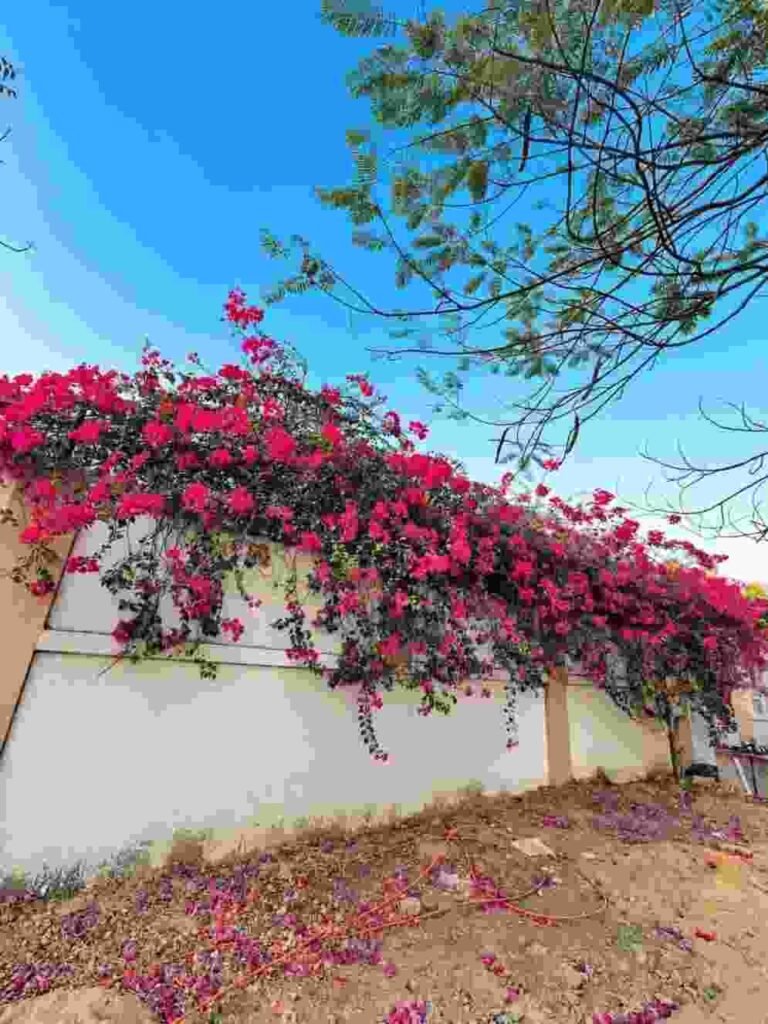
Take the person from the first image and naturally place them into the second image. Make the person look completely realistic and properly integrated with the lighting, perspective, colors, and overall environment of the second photo.

Keep the person's original face, facial features, body proportions, and overall size unchanged. Do not modify or replace any existing elements of the original background. The background should remain exactly the same as in the second photo.

Improve the final image to high-quality 8K resolution and use a 3:4 aspect ratio.

Enhance the scene with beautiful natural-looking clouds in the sky. Add elegant 3D flowers that complement the existing background colors. Include a few delicate flowers floating through the scene at different distances and depths, creating a soft sense of movement. Make sure all added elements have realistic lighting, shadows, depth, and blending so they look naturally captured within the original scene.
Build A Different Mood With Every New Scene
Using a different background for the same photo can make every edit feel fresh. One photo can have a pink flower background, another can have a blue door, while another can use a riverside or open-sky scene. This gives every image its own style.
When using natural lighting photo manipulation, it is important to match the light of the new background with the original photo. If light falls on the person’s face from one direction but the background has light coming from another direction, the result may look unnatural.
The same idea applies to colors. Instead of using too many colors together, try to keep a good balance between the background and the person’s clothes. A slightly blurred background can also make the main subject stand out more clearly.
Using different locations, color tones, and lighting styles for every new scene can make the same photo look completely different each time. This is what makes background editing more creative and interesting.
Conclusion
Changing the background is an easy and creative way to give a new look to your photo. You can place a normal photo in a flower-filled house, a colorful doorway, a riverside location, a green garden, or under an open sky. The most important things are choosing the right Prompt and selecting a background that matches the original photo.
Keeping the person’s face, hair, clothes, and natural appearance unchanged while replacing only the background can make the result look much more realistic. Paying attention to lighting, shadows, and color tones can make the edited image even better.
Trending Background Change Photo Editing Prompt makes it easy to place a normal photo into a completely new environment. With a little creativity and clear instructions, you can create beautiful photos in different styles. You can also save or download the final image according to the options available on the editing platform and use it for your preferred purpose.